In This Guide
- 1.What is WebMCP? (The Simple Explanation)
- 2.Why WebMCP Is a Game-Changer
- 3.How It Works: Under the Hood
- 4.The Imperative API: registerTool()
- 5.The Declarative API: toolname & tooldescription
- 6.How to Implement WebMCP Today (Step-by-Step)
- 7.What We Found Testing It Live
- 8.The New Frontier: Agent SEO (AEO)
What is WebMCP? (The Simple Explanation)
Imagine you're playing a video game. You have a controller with buttons labelled "Jump," "Run," and "Use Item." You know exactly what each button does because they're clearly labelled.
Right now, AI agents trying to use the web are like players with a blank, unlabelled controller. They see a screen full of buttons and links, but they have to guess what each one does based on its colour, shape, and the text around it. Sometimes they guess right, but a lot of the time, they get it wrong.
searchProducts and it needs a productName. This one is bookFlight and it needs a destination and a date."| Without WebMCP (Guessing) | With WebMCP (Labelled) |
|---|---|
| AI sees a blue button that says "Search" and guesses what it does | AI sees a tool called searchProducts with a clear description |
| AI tries to fill in a form by reading the label text | AI reads the exact inputSchema and knows exactly what to send |
| The site redesigns and the AI breaks completely | The tool API stays stable regardless of visual changes |
Why WebMCP Is a Game-Changer
For the past 20 years, the internet has been a two-way street between websites and humans. WebMCP turns it into a three-way intersection, adding AI agents as first-class citizens.
For Users: Superpowered Assistants
Your AI assistant will be able to book flights, order groceries, and file support tickets across any WebMCP-enabled site — without you ever having to visit them. Instead of just getting a list of links, your AI will complete tasks directly.
For Businesses: The Rise of Agent SEO (AEO)
Just like SEO made websites discoverable to search engines, AEO will make your services discoverable to AI agents. The first businesses in every category to implement WebMCP become the default choice for a generation of AI.
search_flights tool with clear parameters. American's site does not. The AI queries United directly. American is invisible in that interaction.For Developers: No More Screen Scraping
The fragile, error-prone practice of writing bots that pretend to be humans is over. WebMCP provides a stable, official way to interact with websites programmatically. The web becomes a universal API.
How It Works: Under the Hood
WebMCP introduces two key mechanisms: a JavaScript API for registering tools, and a discovery manifest that tells agents your site supports WebMCP before they even load a page.
The Discovery Manifest: webmcp.json
Place a file at https://yoursite.com/.well-known/webmcp.json. This acts like a sitemap for AI agents — it tells them your site speaks WebMCP and lists your available tools.
You can see our live implementation at mcphubz.com/.well-known/webmcp.json.
The JavaScript API: navigator.modelContext
Once on your page, agents access your tools through the navigator.modelContext object. You register tools using registerTool(), which tells the browser — and any visiting AI agent — exactly what your page can do.
The Imperative API: registerTool()
This is the most powerful way to expose a tool. Here is a real-world example — a product search tool with proper error handling:
nameA unique, machine-readable identifier for your tool.descriptionA clear explanation of what the tool does. This is the core of AEO — the AI reads this to understand when and how to use your tool.inputSchemaA JSON Schema object defining the exact inputs the tool expects. This is the labelled controller.executeAn async function with your tool logic. Always handle errors — the AI needs to know when something goes wrong.
The Declarative API: toolname & tooldescription
For simple actions already handled by an HTML form, you can make it agent-ready with three HTML attributes — no JavaScript required. This is the official, spec-compliant approach confirmed in Google's own reference implementations at GoogleChromeLabs/webmcp-tools.
Add toolname and tooldescription to your <form> element, then add toolparamdescription to each input to tell the AI exactly what data to provide.
toolname is the machine-readable tool identifier. tooldescription tells the AI what the tool does. toolparamdescription on each input tells the AI what data to fill in. The browser handles the rest — no JavaScript, no build step, no dependencies.This is the fastest way to make your existing forms agent-ready. Any form on your site — contact forms, search forms, booking forms, checkout forms — can be exposed to AI agents in under two minutes.
How to Implement WebMCP Today (Step-by-Step)
Use Chrome Canary 146 or newer
WebMCP is available as an early preview in Chrome 146 Canary behind a feature flag. It is not in Chrome Stable yet, and no default-rollout date has been announced. Download Canary from google.com/chrome/canary and check your version at chrome://version.
Enable the WebMCP Flags
Chrome 146+ has WebMCP built in but switched off by default. You need to turn it on manually:
- Open Chrome Canary (146 or newer)
- Type chrome://flags in the address bar and press Enter
- In the search box, type: WebMCP
- You will see two flags appear:
WebMCP for testing— enables the navigator.modelContext JavaScript APIWebMCP support in DevTools— enables WebMCP tooling in Chrome DevToolsSet both to Enabled, then click Relaunch at the bottom of the page.
Open the Live Demo
Visit mcphubz.com/webmcp-test.html in Chrome Canary 146+. If the flags are enabled, you will see the green confirmation message and a list of all registered tools with their full JSON schemas.
Verify the Tools Are Registered
Press F12 to open DevTools and click the Console tab. Type this and press Enter:
You will see the modelContext object with all registered tools. This confirms the API is active and your tools are visible to any AI agent visiting the page.
What We Found Testing It Live
We built and tested a live WebMCP demo at mcphubz.com/webmcp-test.html using Chrome Canary 146. Here is exactly what we found — no sugarcoating.
What Works Right Now
The navigator.modelContext.registerTool() API works perfectly. Tools register successfully, their full JSON schemas are stored, and the browser confirms the registration. Here is our demo with three tools registered:
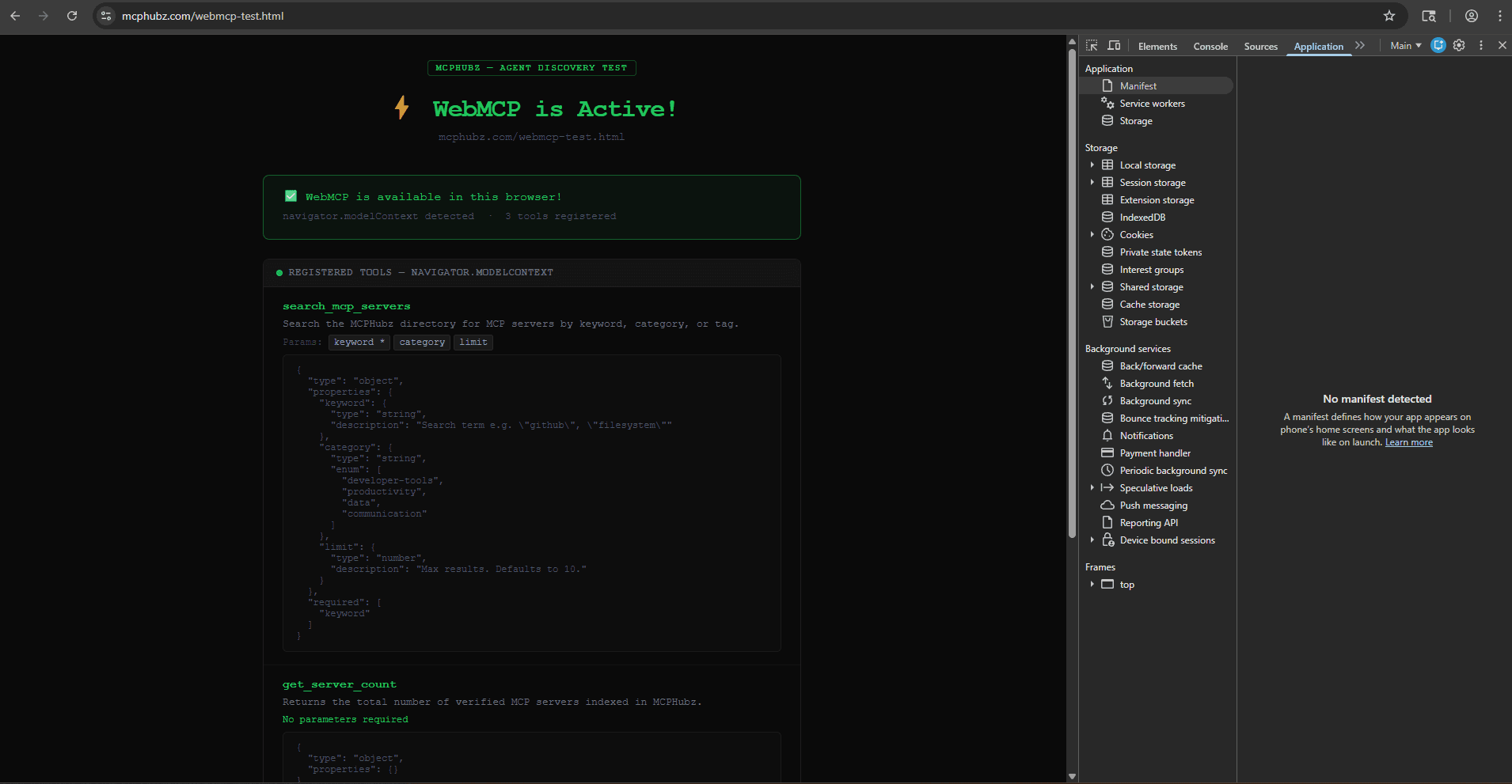
Chrome Canary 146 confirming WebMCP is active with 3 tools registered. The full JSON schema for search_mcp_servers is visible.
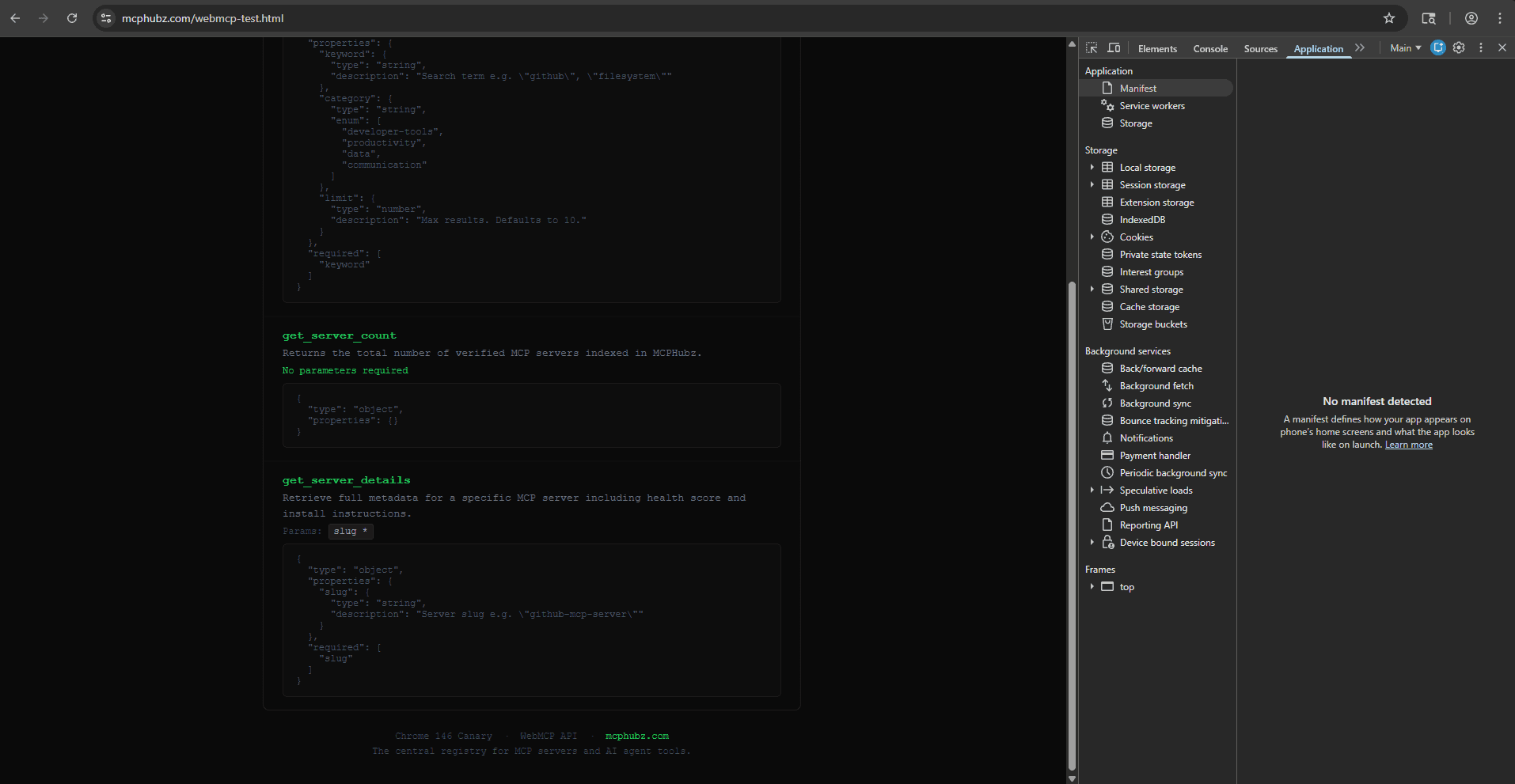
Scrolling down shows get_server_count (no parameters required) and get_server_details with its slug parameter schema.
What Is Still Being Built
We also found that navigator.modelContext.executeTool() is not yet implemented in this build. The tool registration API is the stable part right now — the execution API is coming in a future update. This means you can register your tools today so agents can discover them, but the browser-side execution will come later.
The Bottom Line
WebMCP is real, it works, and it is being actively built right now. The fact that some parts are still in progress is exactly what you would expect from a technology that is weeks old. Getting in now means your tools will be registered and ready the moment agents start using them.
The New Frontier: Agent SEO (AEO)
Just as meta descriptions and title tags helped search engines understand your pages, tool descriptions and input schemas will help AI agents understand your capabilities. AEO is about being the agent's first choice.
Good vs. Bad Tool Descriptions
❌ BAD
"Search function""Subscribe"✅ GOOD
"Search for products by keyword with optional category and price filters. Returns a list of matching items with name, price, and availability."